Prečo vzniklaWhy it exists
Silent Companion som pôvodne urobil pre svoju mamu, ktorá sa nevedela dorozumieť s ľuďmi okolo seba. Chcel som pre ňu ľahkú appku, ktorá sa ovláda jedným ťuknutím: iPhone leží na stole a preklad ide rovno do slúchadiel alebo na displej. Pre ňu to bolo jednoduché a využiteľné v praxi.
Ak to pomáha mne, nech to pomôže aj blízkym a ďalším.
I originally made Silent Companion for my mother, who couldn’t communicate with the people around her. I wanted a light app she could use with a single tap: the iPhone lies on the table and the translation goes straight into her earphones or onto the screen. For her it was simple and useful in everyday life.
If it helps me, may it help my loved ones and others too.
Aby sa ľudia nielen dorozumeli, ale aj porozumeli.
So that people don’t just get by, but truly understand each other.
Návod a pomocGuide and help
Pred cestouBefore you travel
Najlepšie doma, na Wi-Fi:
Best done at home, on Wi-Fi:
- Na úvodnej obrazovke ťukni na Pokračovať a povoľ appke mikrofón.
- Ak chceš titulky po slovensky, česky alebo maďarsky, máš tri cesty: v Nastaveniach v časti Preklad zapni Prekladač Google v telefóne a ťukni na Stiahnuť preklad Google (bez kľúča), alebo vlož svoj vlastný bezplatný kľúč DeepL či Microsoft (postup je hneď nižšie). Pri iných jazykoch stačí prekladač iPhonu: v Nastaveniach v časti Preklad ťukni na Stiahnuť preklad do iPhonu.
- V Nastaveniach appky (ozubené koliesko) ťukni na Stiahnuť ďalší jazyk, vyhľadaj a stiahni jazyky, ktoré budeš počúvať. Môžeš ich mať stiahnutých aj viac naraz. Kým jazyk nie je stiahnutý, appka v ňom nezačne počúvať, ale ponúkne ti Stiahnuť teraz priamo na hlavnej obrazovke.
- Ak nechceš titulky po slovensky, ťukni na hlavnej obrazovke vpravo hore na Titulky a vyber iný jazyk.
- On the first screen tap Continue and allow the microphone.
- For Slovak, Czech or Hungarian subtitles you have three options: in Settings, under Translation, turn on Google translator on the phone and tap Download Google translation (no key needed), or add your own free DeepL or Microsoft key (see the next sections). For other languages the iPhone translator is enough: in Settings, under Translation, tap Download translation to the iPhone.
- In the app’s settings (the gear icon), tap Download another language, search for and download the languages you’ll be listening to. You can keep several downloaded at once. The app won’t start listening in a language until it is downloaded, but it offers Download now right on the main screen.
- If you don’t want Slovak subtitles, tap Subtitles at the top right of the main screen and pick another language.
Kľúč DeepLYour DeepL key
Do slovenčiny, češtiny a maďarčiny (a vždy, keď v Nastaveniach zvolíš prekladač Vždy online služba) prekladá online služba, ktorú si vyberieš v časti Online preklad: DeepL alebo Microsoft. Appka na to používa tvoj vlastný kľúč. Ostatné jazyky vie bez kľúča preložiť aj prekladač iPhonu, slovenčinu, češtinu a maďarčinu aj voliteľný prekladač Google v telefóne. Nový bezplatný kľúč (plán DeepL API Developer) dáva jednorazovo 1 000 000 znakov, ktoré sa mesačne neobnovujú. Pri bežnom cestovaní to vystačí na dlho, potom treba platený plán Growth. Kto má starší kľúč DeepL API Free, má naďalej 500 000 znakov mesačne.
Into Slovak, Czech and Hungarian (and always, if you choose the Always online service translator in Settings) the translation is done by the online service you pick under Online translation: DeepL or Microsoft. The app uses your own key for it. Other languages can also be translated by the iPhone translator without a key, and Slovak, Czech and Hungarian by the optional Google translator on the phone. A new free key (the DeepL API Developer plan) gives you a one-time 1,000,000 characters that do not renew monthly. For normal travel that lasts a long time; after that you need the paid Growth plan. If you have an older DeepL API Free key, you still get 500,000 characters a month.
- Otvor deepl.com/pro-api a pri pláne Developer ťukni na Sign up for free.
- Zaregistruj sa. DeepL môže pri registrácii pýtať platobnú kartu na overenie.
- V účte DeepL skopíruj svoj kľúč. Bezplatný kľúč končí na „:fx“.
- V appke ťukni na ozubené koliesko, v časti Online preklad vyber Online služba: DeepL a ťukni na Vložiť. Appka kľúč overí a ukáže, koľko znakov si už minul z limitu.
- Open deepl.com/pro-api and under the Developer plan tap Sign up for free.
- Sign up. DeepL may ask for a payment card during sign-up, to verify you.
- Copy your key from your DeepL account. Free keys end in “:fx”.
- In the app, tap the gear icon, under Online translation choose Online service: DeepL and tap Paste. The app checks the key and shows how many characters of your allowance you have used.
Kľúč je uložený v Kľúčenke iPhonu. Čo DeepL robí s prekladanými vetami, nájdeš v zásadách ochrany súkromia.
The key is stored in your iPhone’s Keychain. What DeepL does with the sentences it translates is explained in the privacy policy.
Kľúč MicrosoftYour Microsoft key
Druhá online služba je Microsoft Translator. Tiež prekladá do slovenčiny, češtiny a maďarčiny. Bezplatná úroveň Free F0 dáva 2 000 000 znakov mesačne a limit sa každý mesiac obnoví. Keď ho minieš, preklad sa do konca mesiaca zastaví a nič sa neplatí (cenník Microsoftu). Kľúč si zakladáš raz, v Azure.
The second online service is Microsoft Translator. It also translates into Slovak, Czech and Hungarian. The free Free F0 tier gives you 2,000,000 characters a month, and the limit renews every month. Once you use it up, translation stops until the end of the month and nothing is charged (Microsoft’s pricing). You set up the key once, in Azure.
- Otvor portal.azure.com a prihlás sa účtom Microsoft.
- Ak ešte nemáš predplatné (Subscription), založ si ho. Azure pri tom overí platobnú kartu, strhne 0 €.
- Do vyhľadávania napíš Translator, ťukni na + Create a pri Pricing tier vyber Free F0. Ostatné úrovne sú platené.
- V hotovom zdroji otvor vľavo Keys and Endpoint, skopíruj KEY 1 a pozri si riadok Location/Region.
- V appke ťukni na ozubené koliesko, v časti Online preklad vyber Online služba: Microsoft a do poľa Oblasť napíš oblasť z Azure (napríklad westeurope). Pri zdroji Global nechaj pole prázdne.
- Ťukni na Vložiť. Appka kľúč overí preložením jedného slova a napíše „Kľúč funguje.“
- Open portal.azure.com and sign in with a Microsoft account.
- If you don’t have a subscription yet, create one. Azure verifies a payment card in the process and charges 0 €.
- Search for Translator, tap + Create and under Pricing tier choose Free F0. The other tiers are paid.
- In the new resource, open Keys and Endpoint on the left, copy KEY 1 and note the Location/Region line.
- In the app, tap the gear icon, under Online translation choose Online service: Microsoft and type the Azure region into the Region field (westeurope, for example). For a Global resource, leave the field empty.
- Tap Paste. The app checks the key by translating a single word and says “The key works.”
Ak appka hlási, že kľúč neplatí, najčastejšie je zle zadaná oblasť. Tip: ten istý kľúč môžeš vložiť aj na ďalšie zariadenia, napríklad v rodine. Limit 2 000 000 znakov je potom pre všetky spoločný.
If the app says the key is not valid, the region is usually wrong. Tip: you can paste the same key on other devices too, for example in your family. The 2,000,000-character limit is then shared by all of them.
Kľúč je uložený v Kľúčenke iPhonu, rovnako ako kľúč DeepL. Čo Microsoft robí s prekladanými vetami, nájdeš v zásadách ochrany súkromia.
The key is stored in your iPhone’s Keychain, just like the DeepL key. What Microsoft does with the sentences it translates is explained in the privacy policy.
Ako to funguje podrobneHow it works in detail
Reč rozpoznáva priamo iPhone, používa na to rozpoznávanie reči od Apple. Zvuk z mikrofónu neopúšťa telefón a nikam sa neukladá.
Speech is recognised right on the iPhone, using Apple’s speech recognition. Audio from the microphone never leaves the phone and is never saved.
Keď niekto dopovie vetu, appka ju preloží. Pri prekladači Automaticky (Nastavenia, časť Preklad) skúša v tomto poradí: najprv prekladač iPhonu od Apple, ak má stiahnutý preklad pre tvoje dva jazyky, potom prekladač Google v telefóne, ak si ho zapol a jazyk je stiahnutý. Oba prekladajú priamo v telefóne, bez kľúča a aj bez internetu. Inak pošle text vety cez zabezpečené spojenie online službe, ktorú si zvolil (DeepL alebo Microsoft). Na to potrebuje internet a tvoj vlastný kľúč (návod je vyššie). Pri voľbe Vždy online služba prekladá vždy online služba. Preklad sa potom ukáže ako titulok.
Prekladač iPhonu zatiaľ nevie slovenčinu, češtinu ani maďarčinu, prekladač Google áno. Jazyk Google sa stiahne raz (asi 30 MB) tlačidlom Stiahnuť preklad Google. Prepínač Prekladač Google v telefóne je predvolene vypnutý: text viet z telefónu neodchádza, ale knižnica Google posiela Google diagnostiku (napríklad model telefónu, verziu appky a zvolené jazyky, nikdy text viet). Viac v zásadách ochrany súkromia. V Nastaveniach vidíš aj riadok, kto tvoju dvojicu jazykov prekladá, napríklad „Slovenčina → Angličtina: prekladá Microsoft cez internet“.
When someone finishes a sentence, the app translates it. With the Automatic translator (Settings, Translation) it tries in this order: first Apple’s iPhone translator, if it has your two languages downloaded, then the Google translator on the phone, if you switched it on and the language is downloaded. Both translate right on the phone, without a key and even offline. Otherwise the app sends the text over a secure connection to the online service you chose (DeepL or Microsoft). For that it needs an internet connection and your own key (see above). With Always online service, the online service always translates. The translation then appears as a subtitle.
The iPhone translator does not know Slovak, Czech or Hungarian yet; the Google translator does. A Google language is downloaded once (about 30 MB) with Download Google translation. The Google translator on the phone switch is off by default: the sentence text never leaves the phone, but the Google library sends Google diagnostics (for example the phone model, app version and chosen languages, never the text of sentences). More in the privacy policy. Settings also show a line saying who translates your language pair, for example “Slovak → English: translated by Microsoft online”.
Keď ťukneš na Zastaviť, titulky ostanú na obrazovke, kým nezačneš počúvať znova alebo neťukneš na Vymazať. Ak chceš, ťukni na Uložiť, potom Uložiť záznam a rozhovor si ulož ako text (preklad aj originál s časom), napríklad do Poznámok alebo Súborov. Appka sama si z rozhovoru nič nepamätá, kým ho neuložíš do archívu.
When you tap Stop, the subtitles stay on the screen until you start listening again or tap Clear. If you like, tap Save, then Save transcript to keep the conversation as text (translation and original with the time), for example in Notes or Files. The app itself keeps nothing of the conversation unless you save it to the archive.
OvládanieControls
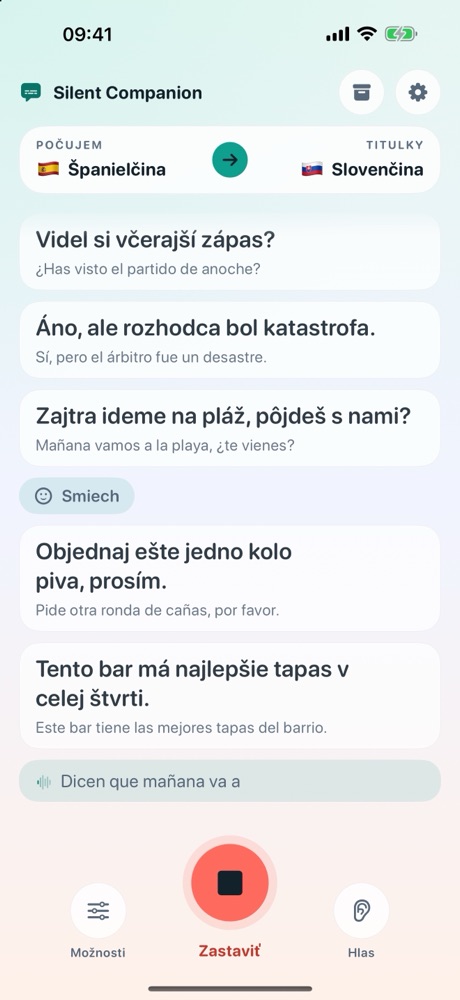
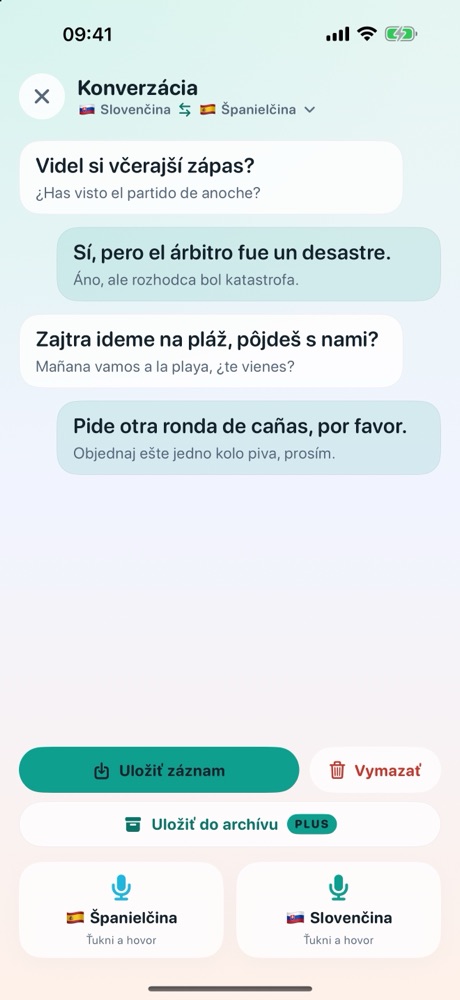
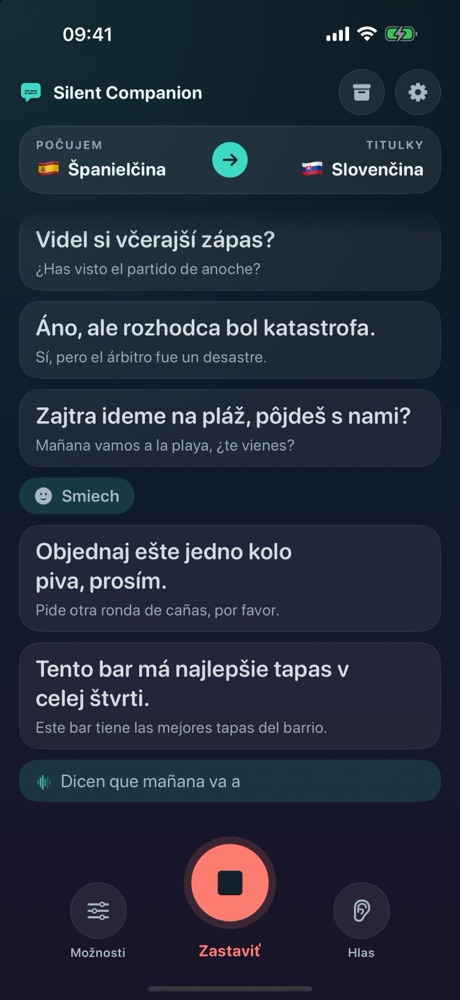
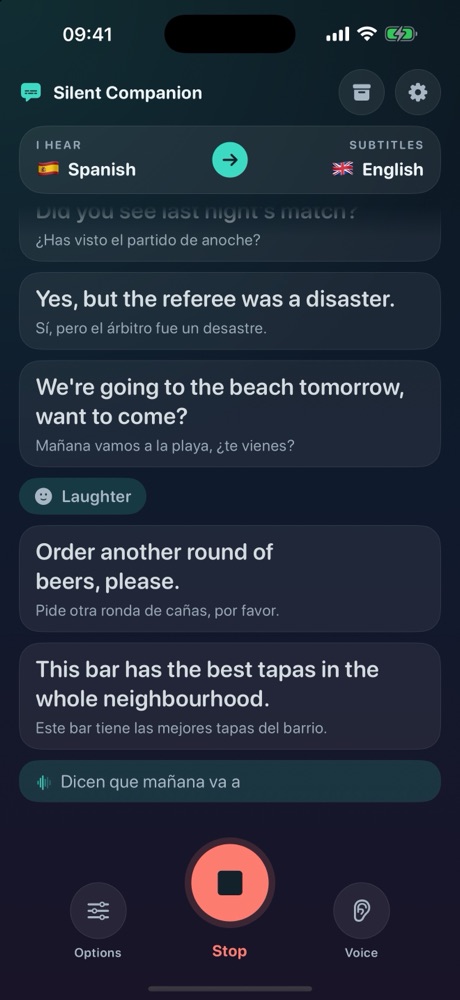
- Obrazovka (od verzie 2.6): titulky majú celú plochu. Hore sú jazyky, dole tri tlačidlá: Možnosti, Počúvať a tretie podľa situácie (Rozhovor, počas počúvania Hlas, po Zastaviť Uložiť). Mikrofón, prostredie, hlas a zvuky okolo nájdeš v Možnostiach.
- Živý preklad (od verzie 2.6): kým človek hovorí, nad jeho slovami sa preklad dopĺňa priebežne. Robí ho prekladač v telefóne (Apple alebo Google, bez internetu); s DeepL a Microsoft sa preklad ukáže až po dokončení vety.
- Počujem je jazyk, ktorým hovoria ľudia okolo teba, Titulky jazyk, do ktorého sa prekladá. Oba vyberieš hore na hlavnej obrazovke.
- Mikrofón vyberáš medzi iPhonom a externým mikrofónom. Keď iPhone leží na stole medzi ľuďmi, stačí mikrofón iPhonu. Externý mikrofón môže byť Bluetooth (AirPods, mikrofón s klipom) alebo káblový (USB-C, slúchadlá s mikrofónom). Appka si vyberie najlepší pripojený a ukáže jeho názov.
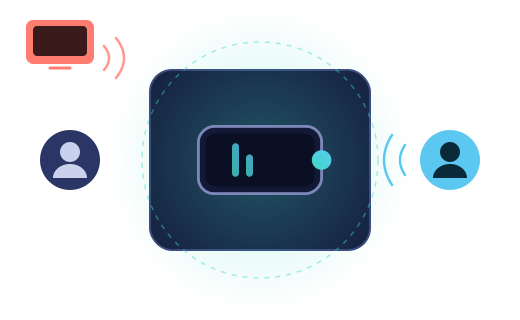
- Prostredie: Ľudia okolo počuje aj vzdialené hlasy, hodí sa na rozhovor pri stole, poradu aj prednášku. Hlučné miesto (bar, ulica) počúva len toho, kto hovorí tesne pri telefóne, ostatných tlmí.
- Hlas v ušiach ti titulky prečíta do slúchadiel (AirPods, EarPods aj iné), v jazyku, ktorý si zvolil pre titulky.
- Čítať nahlas ich prečíta z reproduktora iPhonu, aj bez slúchadiel. Kým appka číta, nepočúva, aby neprekladala sama seba. Počká, kým človek dohovorí.
- Opisovať zvuky okolo (Nastavenia, Zvuky okolo, od verzie 2.5): appka do titulkov napíše aj zvuky, ktoré nie sú reč, napríklad zvonček pri dverách, klopanie, sirénu, smiech či hudbu. Rozpoznáva ich iPhone, nič sa nenahráva ani neposiela.
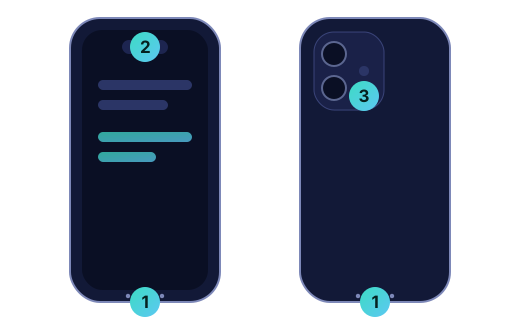
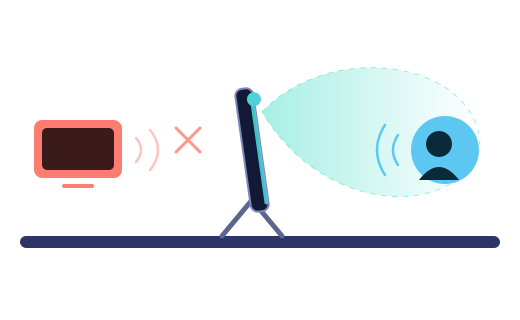
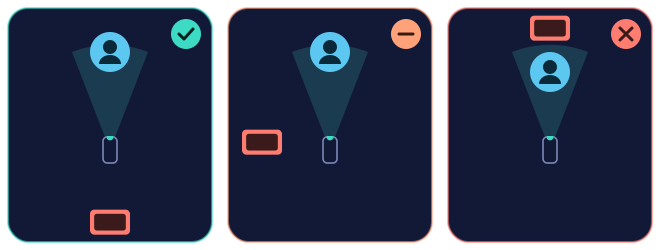
- Otočiť obrazovku (Možnosti, od verzie 2.6): hlavné mikrofóny sú na spodnej hrane iPhonu. Polož ho spodnou hranou k tomu, kto hovorí, a obrazovka sa otočí k tebe. Keď telefón držíš hore nohami, otočí sa sama. Rozhovor sa otáča s ňou; Nastavenia a Archív sa otvoria, keď iPhone zdvihneš.
- Počúvať a Zastaviť spustia a ukončia počúvanie. Pri telefonáte sa počúvanie pozastaví, po hovore zvyčajne pokračuje samo, inak ťukni na Pokračovať.
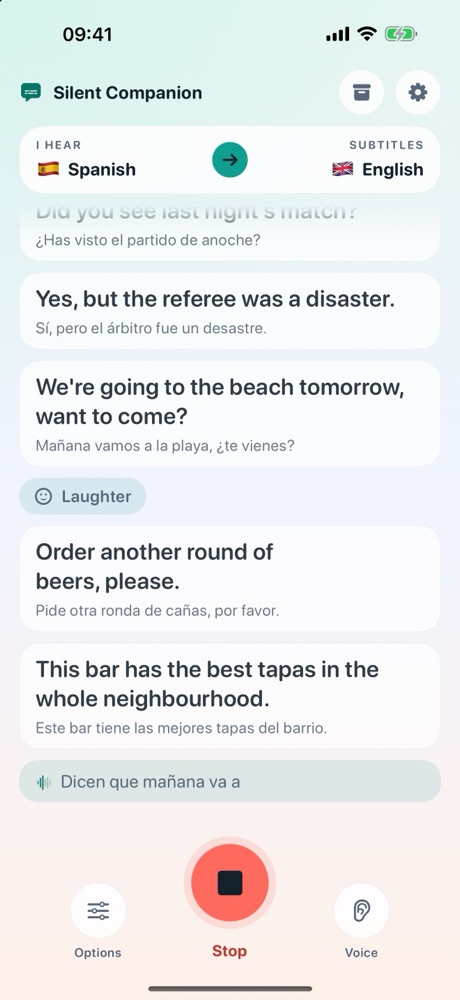
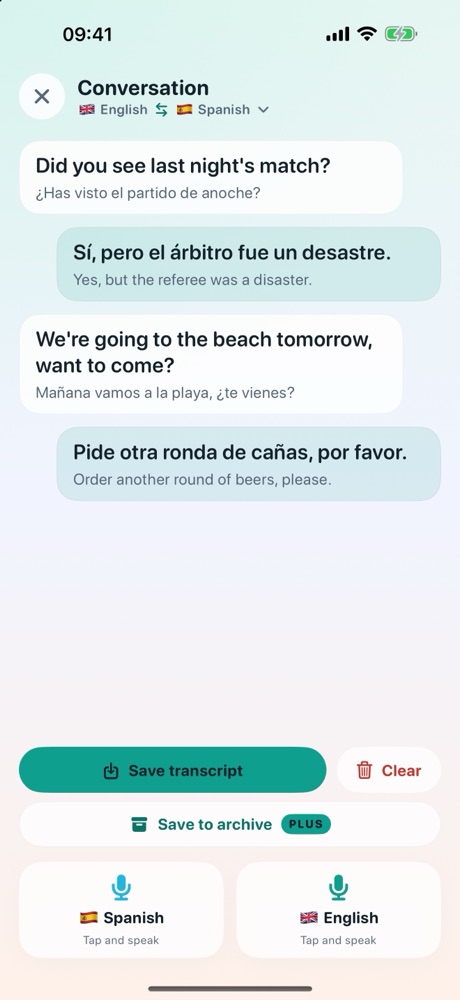
- The screen (from version 2.6): the subtitles fill it. The languages sit at the top, three buttons at the bottom: Options, Listen and a third one that depends on the moment (Conversation, Voice while listening, Save after Stop). Microphone, surroundings, voice and sounds around are in Options.
- Live translation (from version 2.6): while someone is speaking, the translation fills in above their words. It is done by the translator on the iPhone (Apple or Google, offline); with DeepL and Microsoft the translation appears once the sentence is finished.
- I hear is the language the people near you are speaking, Subtitles the language they are translated into. You pick both at the top of the main screen.
- Microphone lets you choose between the iPhone and an external microphone. With the iPhone on the table among people, its own microphone is enough. An external mic can be Bluetooth (AirPods, a clip-on mic) or wired (USB-C, a headset with a mic). The app picks the best one connected and shows its name.
- Surroundings: People around also hears distant voices, good for a talk at the table, a meeting or a lecture. Noisy place (a bar, the street) listens only to the person speaking right next to the phone and damps everyone else.
- Voice in ears reads the subtitles into your headphones (AirPods, EarPods or others), in the language you chose for subtitles.
- Read aloud reads them through the iPhone speaker, no headphones needed. While it reads, the app doesn’t listen, so it never translates itself. It waits until the person has finished speaking.
- Describe sounds around (Settings, Sounds around, from version 2.5): the app also writes sounds that are not speech into the subtitles, such as a doorbell, knocking, a siren, laughter or music. The iPhone recognises them; nothing is recorded or sent.
- Flip screen (Options, from version 2.6): the main microphones are on the bottom edge of the iPhone. Lay it with the bottom edge towards the person speaking and the screen turns to face you. Held upside down, it flips by itself. The conversation turns with it; Settings and the archive open once you pick the iPhone up.
- Listen and Stop start and end listening. A phone call pauses listening; when it ends, the app usually continues by itself, otherwise tap Continue.
Keď niečo nejdeTroubleshooting
„Tento jazyk ešte nie je v iPhone stiahnutý.“The app says the language isn’t downloaded
iPhone ešte nemá stiahnutý jazyk okolia, ktorý si vybral. Pripoj sa na Wi-Fi a ťukni priamo pod hláškou na Stiahnuť teraz, alebo v Nastaveniach na Stiahnuť ďalší jazyk. Rozpoznávanie reči potom beží aj bez internetu. Preklad cez DeepL alebo Microsoft internet potrebuje, prekladač iPhonu a prekladač Google v telefóne nie.
Your iPhone hasn’t downloaded the language you picked yet. Connect to Wi-Fi and tap Download now right below the message, or Download another language in Settings. After that, speech recognition works even without internet. Translation by DeepL or Microsoft needs a connection, the iPhone translator and the Google translator on the phone do not.
Appka ukazuje len bielu obrazovku alebo prestala reagovaťThe app shows only a white screen or stopped responding
Je to chyba verzie 2.3, opravená vo verzii 2.5. Aktualizuj appku v App Store. Kým aktualizáciu nemáš: pri bielej obrazovke po spustení zmenši písmo v iPhone (Nastavenia, Displej a jas, Veľkosť textu), po aktualizácii ho môžeš vrátiť. Jazyk sťahuj v Nastaveniach appky cez Stiahnuť ďalší jazyk, nie tlačidlom na hlavnej obrazovke.
This is a bug in version 2.3, fixed in version 2.5. Update the app in the App Store. Until you have the update: if the app shows a white screen after launch, make the text smaller on your iPhone (Settings, Display & Brightness, Text Size); you can set it back after the update. Download languages in the app’s Settings with Download another language, not with the button on the main screen.
Pod vetami je „chýba kľúč na preklad“Sentences are marked “translation key missing”
Vetu má preložiť online služba, ale appka ešte nemá tvoj kľúč, preto vety ukazuje len v pôvodnom jazyku. Vlož kľúč DeepL alebo Microsoft podľa návodu vyššie. Do slovenčiny, češtiny a maďarčiny môžeš prekladať aj bez kľúča: v Nastaveniach v časti Preklad zapni Prekladač Google v telefóne a ťukni na Stiahnuť preklad Google. Pri ostatných jazykoch stačí ťuknúť na Stiahnuť preklad do iPhonu.
The sentence is meant to be translated by an online service, but the app doesn’t have your key yet, so it shows sentences only in the original language. Add a DeepL or Microsoft key as described above. Into Slovak, Czech and Hungarian you can also translate without a key: in Settings, under Translation, turn on Google translator on the phone and tap Download Google translation. For other languages, tapping Download translation to the iPhone is enough.
Pod vetami je „neplatný kľúč na preklad“Sentences are marked “invalid translation key”
Online služba kľúč neprijala. Pri DeepL skontroluj, či si skopíroval celý kľúč, pri bezplatnom programe aj s koncovkou „:fx“. Pri Microsofte je príčinou najčastejšie zlá oblasť: v Azure pozri v Keys and Endpoint riadok Location/Region a napíš ho do poľa Oblasť (pri Global nechaj pole prázdne). Potom kľúč v Nastaveniach appky vlož znova.
The online service did not accept the key. With DeepL, check that you copied all of it, including the “:fx” ending on a free-plan key. With Microsoft, the usual cause is a wrong region: in Azure, look at the Location/Region line under Keys and Endpoint and type it into the Region field (leave it empty for Global). Then paste the key again in the app’s settings.
Pod vetami je „minutý limit prekladu“Sentences are marked “translation limit used up”
Minul si všetky znaky, ktoré dovoľuje tvoj plán online služby. Pri DeepL: pri novom bezplatnom pláne Developer je to jednorazovo 1 000 000 znakov a viac nepribudne: ďalej pomôže platený plán Growth (vtedy vlož do appky nový kľúč). Pri staršom kľúči DeepL API Free sa limit 500 000 znakov obnoví v ďalšom mesiaci. Pri Microsofte (úroveň Free F0) je to 2 000 000 znakov mesačne, limit sa obnoví v ďalšom mesiaci a nič sa neplatí. Dovtedy appka ukazuje vety v pôvodnom jazyku. Medzitým môžeš v časti Online preklad prepnúť na druhú službu s jej kľúčom, alebo prekladať v telefóne: v Nastaveniach v časti Preklad ťukni na Stiahnuť preklad do iPhonu, pre slovenčinu, češtinu a maďarčinu zapni Prekladač Google v telefóne.
You have used all the characters your online service plan allows. With DeepL: on the new free Developer plan that is a one-time 1,000,000 characters and no more are added: after that the paid Growth plan helps (paste its new key into the app). With an older DeepL API Free key, the 500,000 characters renew next month. With Microsoft (the Free F0 tier) it is 2,000,000 characters a month; the limit renews next month and nothing is charged. Until then the app shows sentences in the original language. Meanwhile you can switch to the other service with its own key under Online translation, or translate on the phone: in Settings, under Translation, tap Download translation to the iPhone, and for Slovak, Czech and Hungarian turn on Google translator on the phone.
Pod vetami je „bez prekladu“Sentences are marked “no translation”
iPhone práve nemá internet a preklad ide cez online službu (DeepL alebo Microsoft). Titulky v pôvodnom jazyku bežia ďalej, a keď sa sieť vráti, appka sa nedávne vety pokúsi dopreložiť. Bez internetu prekladá prekladač iPhonu alebo prekladač Google v telefóne, ak má stiahnuté tvoje jazyky.
Your iPhone has no internet connection right now and translation goes through an online service (DeepL or Microsoft). Subtitles in the original language keep coming, and once you are back online the app tries to translate the recent ones. Offline, the iPhone translator or the Google translator on the phone works if it has your languages downloaded.
Počúvanie sa zastavilo pri telefonáteListening stopped during a phone call
Pri hovore appka počúvanie pozastaví. Keď hovor skončí, zvyčajne pokračuje sama; ak nie, ťukni na Pokračovať.
A phone call pauses listening. When the call ends, the app usually continues by itself; if not, tap Continue.
„Aplikácia nemá prístup k mikrofónu.“The app has no access to the microphone
Povoľ ho v Nastaveniach iPhonu: Nastavenia → Silent Companion → Mikrofón.
Allow it in your iPhone’s Settings: Settings → Silent Companion → Microphone.
Vzdialeného rečníka (prednáška) zachytí len zriedkaA distant speaker (a lecture) is rarely picked up
V sále s ruchom (vetranie, projektor, šuchot) dorazí vzdialený hlas k telefónu len o málo silnejší než ruch a rozpoznávanie reči v iPhone ho z tej zmesi nevytiahne. Nepomôže zosilnenie ani filter. Pomôže mikrofón bližšie k rečníkovi: zvoľ Externý mikrofón, pripoj bezdrôtový mikrofón s klipom (prijímač do USB-C) alebo káblový mikrofón a polož ho čo najbližšie k rečníkovi. Prostredie nechaj na Ľudia okolo.
In a hall with background noise (ventilation, a projector, rustling), a distant voice reaches the phone barely louder than the noise, and the iPhone’s speech recognition can’t pick it out. Boosting the volume or a filter doesn’t help. A microphone closer to the speaker does: choose External mic, connect a wireless clip-on microphone (USB-C receiver) or a wired one, and put it as close to the speaker as you can. Keep Surroundings on People around.
Nahráva sa zvuk?Is the audio recorded?
Nie. Reč sa rozpoznáva v telefóne a zvuk sa nikam neposiela ani neukladá. Na preklad odchádza len text dokončenej vety. Podrobne je to v zásadách ochrany súkromia.
No. Speech is recognised on the phone and the audio is never sent or saved. Only the text of a finished sentence goes out for translation. The details are in the privacy policy.
Vyskúšaj to pri ďalšom rozhovore.Try it at your next conversation.
Stiahnutie je zadarmo. Plus si dokúpiš, až keď zistíš, že ti archív chýba.
The download is free. Add Plus only once you find you miss the archive.